Install Fuchsia on a NUC using Zedboot (Legacy)
This guide provides instructions on how to install Fuchsia on an Intel NUC{:.external} (Next Unit of Computing) device using a [Zedboot][glossary.zedboot]-based bootable USB drive.
Caution: This legacy installation method is being deprecated
in favor of the [mkinstaller command][install-fuchsia].
The steps are:
- Prerequisites.
- Build Fuchsia.
- Prepare a Zedboot-based bootable USB drive.
- Enable EFI booting on the NUC.
- Install Fuchsia on the NUC.
1. Prerequisites {#prerequisites}
Before you start installing Fuchsia on a NUC device, make sure that you've completed the following tasks:
Set up the Fuchsia development environment {#set-up-fuchsia-env}
To set up the Fuchsia development environment on your workstation, complete the [Get started with Fuchsia][get-started-with-fuchsia] guide.
Get parts {#get-parts}
Note: Fuchsia only supports the specific system configurations listed in [Supported system configurations][supported-sys-config].
The following parts are required for this guide:
- A NUC device (see example models)
- A USB 3.0 flash drive
- A keyboard
- A mouse (Optional)
- A monitor with an HDMI port
- An HDMI cable
- An Ethernet cable
- A Phillips-head screwdriver (with a magnetic tip)
Note: The 2. Build Fuchsia and 3. Prepare a USB drive sections do not require a NUC device, so you can complete these sections prior to obtaining a NUC device. However, you will need a USB flash drive for the 3. Prepare a USB drive section.
2. Build Fuchsia {#build-fuchsia}
Installing Fuchsia on a NUC device requires that you build a Workstation
image (workstation_eng.x64) and generate build artifacts on your workstation.
To build Fuchsia for NUC installation, do the following:
-
Set your build configuration to
workstation_eng.x64: -
Build Fuchsia:
Building Fuchsia can take up to 90 minutes.
3. Prepare a Zedboot-based bootable USB drive {#prepare-zedboot-usb}
You need to prepare a bootable USB drive that is based on Fuchsia's Zedboot. Later in the Install Fuchsia on the NUC section, you will use this USB drive to boot your NUC into the Zedboot mode.
Note: The instructions below require that you've completed the build in the previous Build Fuchsia section.
To prepare a bootable USB drive, do the following:
-
Plug the USB drive into your workstation.
-
Identify the path to the USB drive:
This command prints output similar to the following:
none {:.devsite-disable-click-to-copy}
   $ fx list-usb-disks
   /dev/sda - My Example USB Disk
- Create a Zedboot-based bootable USB drive:
Replace PATH_TO_USB_DRIVE with the path to the USB drive from the step
above, for example:
none {:.devsite-disable-click-to-copy}
   $ fx mkzedboot /dev/sda
This command creates a Zedboot-based bootable USB drive and dismounts the USB drive.
- Unplug the USB drive from the workstation.
4. Enable EFI booting on the NUC {#enable-efi-booting}
Update your NUC's BIOS setup so that it can boot from a USB drive.
To enable EFI (Extensible Firmware Interface) booting on your NUC, do the following:
- Reboot your NUC.
- To enter the BIOS setup, press
F2while booting. - In the Boot Order window on the left, click the Legacy tab.
- Uncheck Legacy Boot.
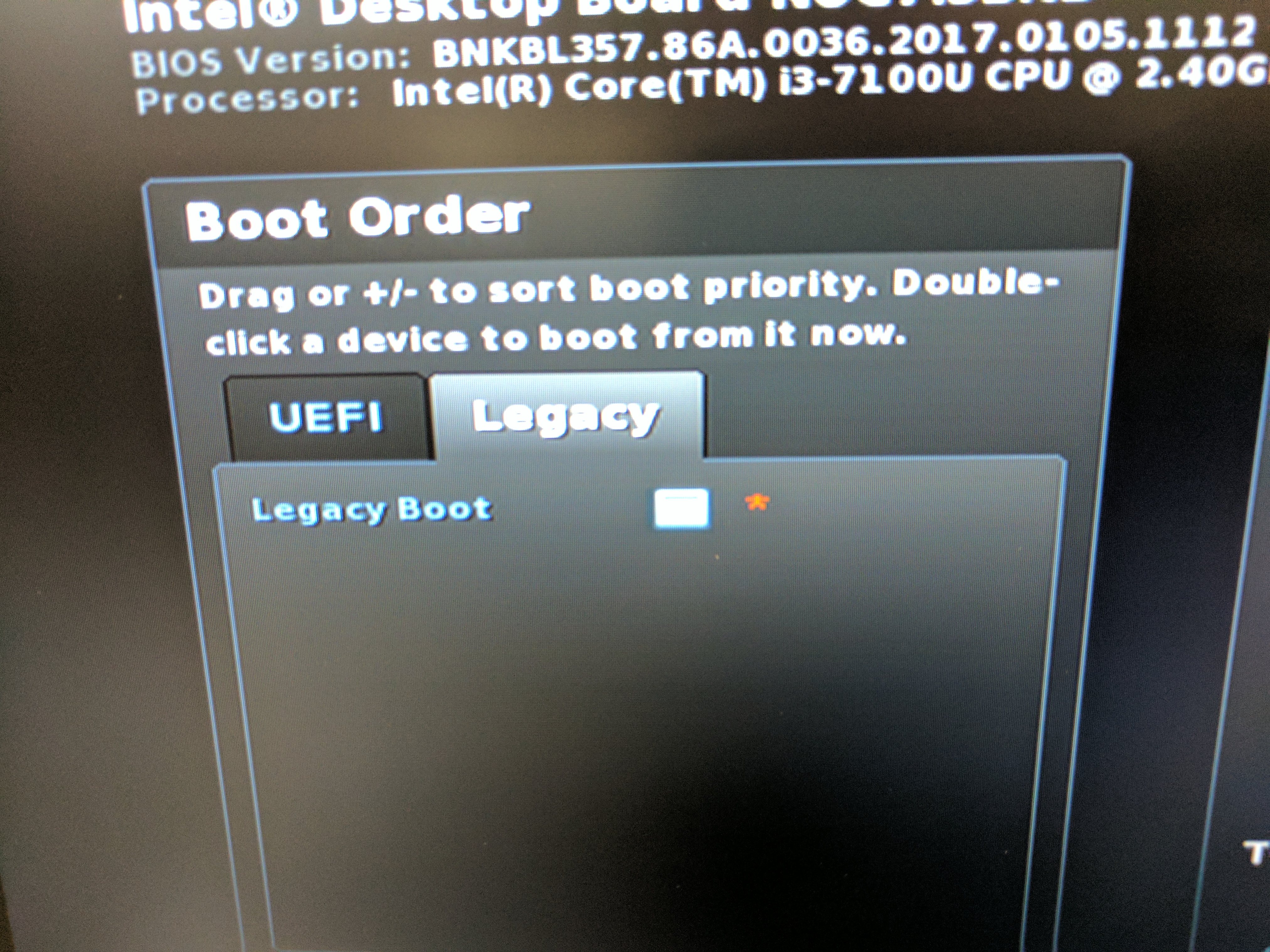 1. Click the Advanced button.
1. Confirm the following boot configuration:
* Under the Boot Priority tab:
* UEFI Boot is checked.
* Under the Boot Configuration tab:
* In the UEFI Boot window:
* Boot USB Devices First is checked.
* Boot Network Devices Last is checked.
* Unlimited Network Boot Attempts is checked.
* In the Boot Devices window:
* USB is checked.
* Network Boot is set to UEFI PXE & iSCSI.
* Under the Secure Boot tab:
* Secure Boot is unchecked.
1. To save and exit BIOS, press
1. Click the Advanced button.
1. Confirm the following boot configuration:
* Under the Boot Priority tab:
* UEFI Boot is checked.
* Under the Boot Configuration tab:
* In the UEFI Boot window:
* Boot USB Devices First is checked.
* Boot Network Devices Last is checked.
* Unlimited Network Boot Attempts is checked.
* In the Boot Devices window:
* USB is checked.
* Network Boot is set to UEFI PXE & iSCSI.
* Under the Secure Boot tab:
* Secure Boot is unchecked.
1. To save and exit BIOS, press F10 and click Yes.
5. Install Fuchsia on the NUC {#install-fuchsia}
Use the Zedboot-based bootable USB drive to boot your NUC into the Zedboot mode. Then pave the Workstation prebuilt image from your workstation to the NUC to install Fuchsia for the first time.
On a NUC, Fuchsia boots the device using a chain of bootloaders. The instructions in this section creates a bootable USB drive for Fuchsia that handles the first two steps in the bootloader chain: [Gigaboot][gigaboot] and [Zedboot][glossary.zedboot]. Gigaboot is a UEFI boot shim with some limited functionality (for instance, [netbooting][netbooting] and flashing). By default, Gigaboot chains into Zedboot, which is a bootloader built on top of Zircon. Zedboot then can boot the device into a Fuchsia product or allow you to pave a Fuchsia image to the device.
To install Fuchsia on your NUC, do the following:
-
Plug the Zedboot-based bootable USB drive into the NUC.
-
Connect the NUC directly to the workstation using an Ethernet cable (or connect the NUC to a router or WiFi modem in the same Local Area Network as the workstation).
Note: Network booting only works with the NUC's built-in Ethernet port – netbooting with an USB port (via an Ethernet-to-USB adapter) is not supported.
- Reboot your NUC.
The NUC boots into Fuchsia's Zedboot mode, displaying Zedboot's signature blue screen.
- On the Zedboot screen, press
Alt+F3to switch to a command-line prompt.
Note: If you cannot press Alt+F3 because the keyboard on the NUC is not
working, see
Keyboard not working after Zedboot
in Troubleshoot.
- On the NUC, view the HDD or SSD's block device path:
Take note of the block device path (for example, the path might look like
/dev/sys/platform/pci/00:17.0/ahci/sata0/block).
- On the NUC, wipe and initialize the partition tables of the NUC:
Replace BLOCK_DEVICE_PATH with the block device path from the step above,
for example:
none {:.devsite-disable-click-to-copy}
   $ install-disk-image wipe-partition-tables --block-device /dev/sys/platform/pci/00:17.0/ahci/sata0/block
   $ install-disk-image init-partition-tables --block-device /dev/sys/platform/pci/00:17.0/ahci/sata0/block
- On your workstation, pave the Fuchsia image to the NUC:
- When the paving is finished, unplug the USB drive from the NUC.
Fuchsia is now installed on your NUC. When you reboot the device, it will load Gigaboot, Zedboot, and Fuchsia all from your device's storage. Therefore, you no longer need to keep the USB drive plugged in.
Later, if you need to install a new version of Fuchsia (for instance, after re-building
a new Workstation image using fx build), see
[Flash a new Fuchsia image to the NUC][flash-fuchsia-to-nuc].
Troubleshoot
Keyboard not working after Zedboot {#keyboard-not-working-after-zedboot}
After plugging the Zedboot USB drive to the NUC, if you notice that the keyboard on the NUC is not working, then skip Step 4 through 6 and perform the following workaround instead:
- On your workstation, try to install Fuchsia on the NUC:
This command may fail due to the partition tables issue on the NUC.
- View the kernel logs:
In the logs, look for an error message similar to the following:
none {:.devsite-disable-click-to-copy}
   Unable to find a valid GPT on this device with the expected partitions. Please run *one* of the following command(s):
   fx init-partition-tables /dev/sys/platform/pci/00:17.0/ahci/sata0/block
1. To initialize the partition tables on the NUC, run the suggested command
in the logs, for example:
none {:.devsite-disable-click-to-copy}
   $ fx init-partition-tables /dev/sys/platform/pci/00:17.0/ahci/sata0/block
- Now, to install Fuchsia on the NUC, run the following command again:
Paving or netbooting not working after Zedboot {#paving-not-working-after-zedboot}
After issuing the fx pave command, if paving does not complete,
make sure the Ethernet cable is directly connected to the Ethernet port of the NUC, and
is not using an Ethernet-to-USB adapter to connect to a USB port of the NUC –
even though an Ethernet-to-USB adapter works after Fuchsia has been paved
(for instance, when doing fx ota), the USB port doesn't work with Zedboot when paving.
Address already in use {#address-already-in-use}
When you run the fx pave command, you may run into the following error:
```none {:.devsite-disable-click-to-copy} 2022-01-20 15:23:00 [bootserver] cannot bind to [::]:33331 48: Address already in use there may be another bootserver running
When you see this error, do the following:

1. Check the processes that are currently using the port 33331:

   ```posix-terminal
   sudo lsof -i:33331
   ```

   This command prints output similar to the following:

   ```none {:.devsite-disable-click-to-copy}
   $ sudo lsof -i:33331
   COMMAND   PID USER   FD   TYPE             DEVICE SIZE/OFF NODE NAME
   ffx     69264 alice  15u  IPv6 0xb12345ed61b7e12d      0t0  UDP *:diamondport
   ```

1. Terminate all the processes in the list, for example:

   ```posix-terminal
   kill 69264
   ```

## Appendices

### Supported NUC models {#supported-nuc-models}

For GPU support, get a NUC7 (Kaby Lake) or NUC8 (Coffee Lake), or a higher
generation.

The list below shows some example models:

 * [Intel® NUC Kit NUC7i5DNKE][NUC7i5DNKE]{:.external}
 * [Intel® NUC Kit NUC7i5DNHE][NUC7i5DNHE]{:.external}
 * [Intel® NUC Kit NUC7i3DNKE][NUC7i3DNKE]{:.external}
 * [Intel® NUC Kit NUC7i3DNHE][NUC7i3DNHE]{:.external}
 * [Intel® NUC Kit NUC8i5BEK][NUC8i5BEK]{:.external}
 * [Intel® NUC Kit NUC8i5BEH][NUC8i5BEH]{:.external}
 * [Intel® NUC Kit NUC8i3BEK][NUC8i3BEK]{:.external}
 * [Intel® NUC Kit NUC8i3BEH][NUC8i3BEH]{:.external}

### Install RAM and SSD to a NUC device {#install-ram-and-ssd-to-nuc}

Some NUC devices do not come with RAM or an SSD. In which case,
you need to install them manually.

<img width="40%" src="/images/developing_on_nuc/parts.jpg"/>

**Figure 1**. A NUC device and RAM and SSD sticks.

The table below shows some RAM and SSD example models:

| Item | Link | Notes |
| ---- | ---- | ------ |
| RAM | [Crucial 8GB DDR4-2400 SODIMM][ram-01]{:.external} | Works fine. |
| SSD | [Samsung SSD 850 EVO SATA M.2 250GB][ssd-01]{:.external} | Works fine. |
| SSD | [ADATA Ultimate SU800 M.2 2280 3D NAND SSD][ssd-02]{:.external} | Works fine. |
| SSD | [CRUCIAL MX300 SSD][ssd-03]{:.external} | Works fine, but is discontinued. |

To install the RAM and SSD on your NUC, do the following:

1. Remove the Phillips screws on the bottom feet of the NUC.

   <img width="40%" src="/images/developing_on_nuc/nuc_bottom.jpg"/>
   <img width="40%" src="/images/developing_on_nuc/nuc_inside.jpg"/>

1. Install the RAM.
1. Remove the Phillips screws that would hold the SSD in place
   (a Phillips screwdriver with a magnetic tip is useful here).

1. Install the SSD.
1. Mount the SSD in place using the screws from Step 3.

   <img width="40%" src="/images/developing_on_nuc/parts_installed.jpg"/>
1. Put the bottom feet and screws back in.
1. Plug the power, monitor (using HDMI), and keyboard into the NUC.

### Remote management of NUC devices {:#remote-management-of-nuc-devices}

To enable remote management, including KVM, you need to configure
Intel [AMT][amt]{:.external} (Active Management Technology).

Note: This assumes you're using NUC connected to the EdgeRouter. If
your networking setup is different, you may need a different network
configuration.

Do the following:

1. Enter Intel ME settings by pressing `Ctrl+P` on the boot screen.

   * The first time you need to set a password, the default one is `admin`.
     Password must be at least 8 characters long, contain both lowercase and
     uppercase characters, at least one digit and at least one non alphanumeric
     character.

1. Configure network:

   1. Go to Network Setup > TCP/IP Settings > Wired LAN IPV4 Configuration.
   1. Disable __DHCP Mode__ and set a static __IPV4 Address__. You need to
      pick an address that will be reachable from your host (for example,
      an address on the same network as the IPv4 interface of your host machine).
   1. Return to AMT Configuration and enable __Activate Network Access__.
   1. Exit Intel ME settings and save your changes.

The [Intel AMT serial-over-LAN](intel_nuc_with_zedboot.md#amt-serial-over-lan) and [vPro KVM](intel_nuc_with_zedboot.md#vpor-kvm)
needs to be enabled before use. These are enabled using the
[`wsman`][wsman]{:.external} command-line utility.

These instructions assume you have set the `AMT_HOST` variable, which
contains the IPv4 address you configured in the Intel ME settings,
In these instructions, `AMT_PASSWORD` is the Intel ME password and `VNC_PASSWORD`
is the VNC password.

Note: Password must be _exactly_ 8 characters long, contain both lowercase and
uppercase characters, at least one digit and at least one non alphanumeric
character.

#### Intel AMT serial-over-LAN {:#amt-serial-over-lan}

Enable AMT redirection service:

```posix-terminal
wsman put http://intel.com/wbem/wscim/1/amt-schema/1/AMT_RedirectionService -h ${AMT_HOST} -P 16992 -u admin -p ${AMT_PASSWORD} -k ListenerEnabled=true
Now, you can remotely access the NUC using amtterm{:.external}:
amtterm -u admin -p ${AMT_PASWORD} ${AMT_HOST}.
Intel vPro KVM {:#vpor-kvm}
Do the following:
- Set the VNC password:
wsman put http://intel.com/wbem/wscim/1/ips-schema/1/IPS_KVMRedirectionSettingData -h ${AMT_HOST} -P 16992 -u admin -p ${AMT_PASSWORD} -k RFBPassword=${VNC_PASSWORD}
- Enable KVM redirection to port 5900:
wsman put http://intel.com/wbem/wscim/1/ips-schema/1/IPS_KVMRedirectionSettingData -h ${AMT_HOST} -P 16992 -u admin -p ${AMT_PASSWORD} -k Is5900PortEnabled=true
- Disable opt-in policy (do not ask user for console access):
wsman put http://intel.com/wbem/wscim/1/ips-schema/1/IPS_KVMRedirectionSettingData -h ${AMT_HOST} -P 16992 -u admin -p ${AMT_PASSWORD} -k OptInPolicy=false
- Disable session timeout:
wsman put http://intel.com/wbem/wscim/1/ips-schema/1/IPS_KVMRedirectionSettingData -h ${AMT_HOST} -P 16992 -u admin -p ${AMT_PASSWORD} -k SessionTimeout=0
- Enable KVM:
wsman invoke -a RequestStateChange http://schemas.dmtf.org/wbem/wscim/1/cim-schema/2/CIM_KVMRedirectionSAP -h ${AMT_HOST} -P 16992 -u admin -p ${AMT_PASSWORD} -k RequestedState=2
Now, you can remotely access the NUC using any VNC client, for example using VNC:
vncviewer ${AMT_HOST}.
remote-management-for-nucget-started-with-fuchsiagigabootglossary.zedboot /development/kernel/getting_started.md#network-booting usb-setupsupported-sys-config[NUC7i5DNKE]: https://ark.intel.com/content/www/us/en/ark/products/122486/intel-nuc-kit-nuc7i5dnke.html
flash-fuchsia-to-nuc intel_nuc.md