{% include "docs/development/editors/vscode/_common/_vscode_header.md" %}
Configuring remote workspaces
VS Code allows you to open a remote folder on any virtual machine, container, or environment with a running SSH server, allowing developers to interact with files and folders on the remote filesystem. Remote workspaces are helpful when using a separate environment to edit, build, or run Fuchsia.
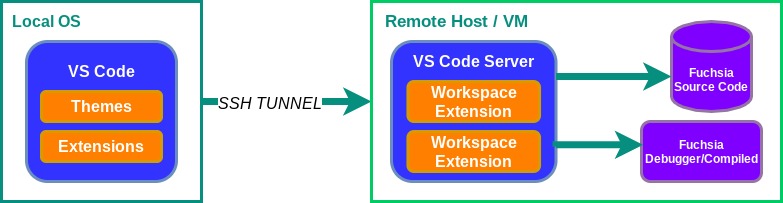
Configuring remote workspaces involve the following steps:
Prerequisites {#prerequisites}
Before you start, complete the following tasks:
- Install VS Code{: .external}
- Install SSH extension
Install SSH extension {#install-ssh-extension}
To connect to a remote host for the first time, install Microsoft’s Remote SSH Extension in VS Code:
- In VS Code, launch Quick Open by running
CMD/CTRL + P. - Paste the following command in the text prompt and press enter:
Connect to remote workspace {#connect-to-remote-workspace}
After installing the SSH extension, connect to your SSH environment:
- Press
F1orCMD/CTRL + SHIFT + Pto open Command Palette. - Type in the field,
Remote-SSH: Connect to Host…and press enter.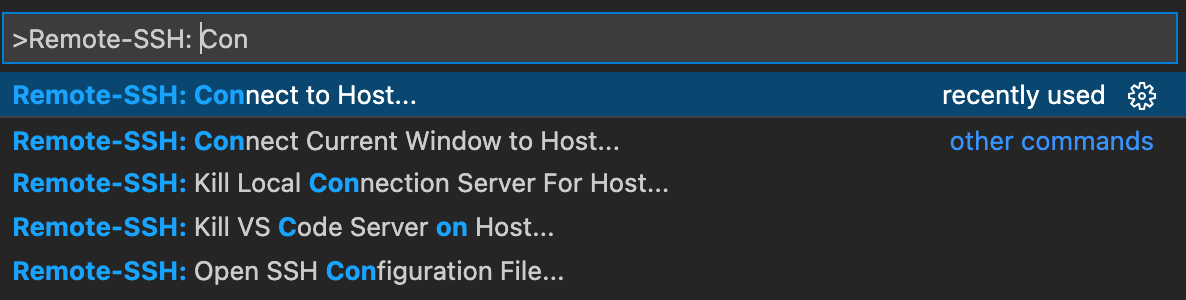
- Type in the domain name of your SSH environment and press enter:
- If VS Code cannot detect the type of server, select the type manually.

- After connecting, the bottom left status bar displays your current SSH session.
Disconnect remote workspace {#disconnect-remote-workspace}
To close the connection with the remote host, you can either:
- Exit VS Code.
- In VS Code's navigation, click File then Close Remote Connection.
Troubleshooting
For additional support, VS Code provides official documentation{: .external} for troubleshooting scenarios.