{% include "docs/development/editors/vscode/_common/_vscode_header.md" %}
VS Code extensions
The following VS Code extensions may provide a productive development environment for Fuchsia:
Fuchsia-specific extensions
Fuchsia-specific extensions provide support with custom Fuchsia files.
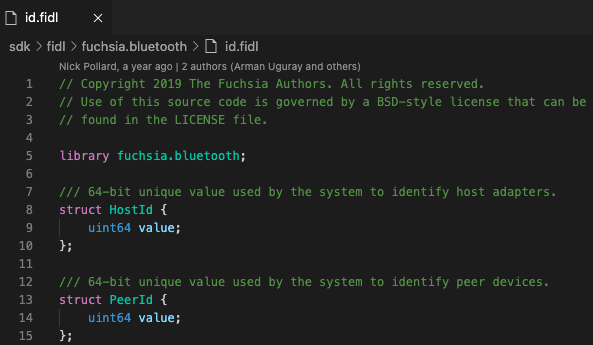
FIDL Language Support
FIDL Language Support{: .external} provides syntax support and LSP-based language features in [FIDL][fidl].
Note: You need to configure Fuchsia environment variables to run this extension. For more information, see [Set up environment variables][set-up-env].
Fuchsia.git Helper
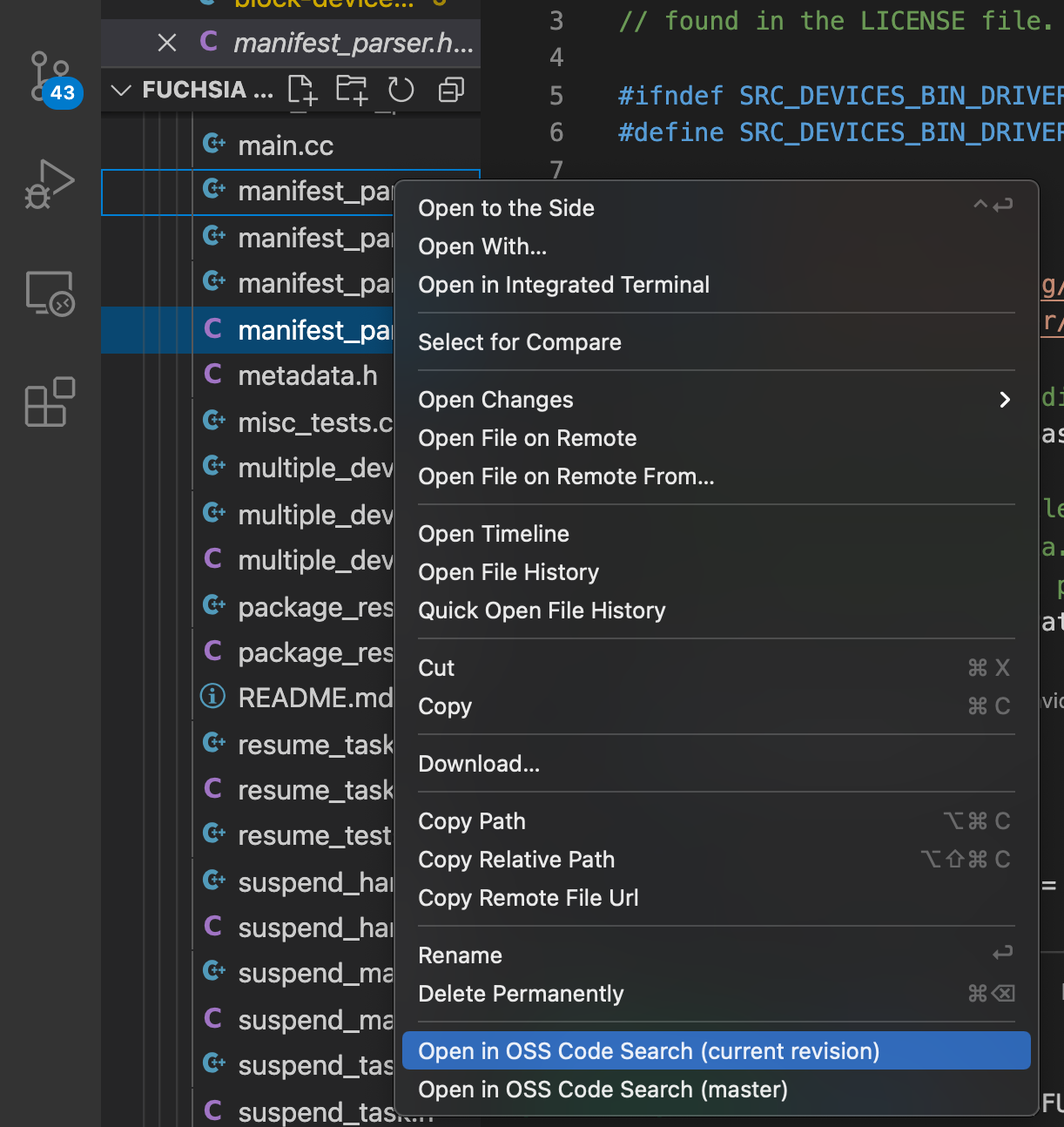
Fuchsia.git Helper{: .external} adds an "Open in...", which allows you to open a file in OSS Code Search.
To use this extension:
- Right click a file in the file editor.
- Select Open in OSS Code Search.
FuchsiAware
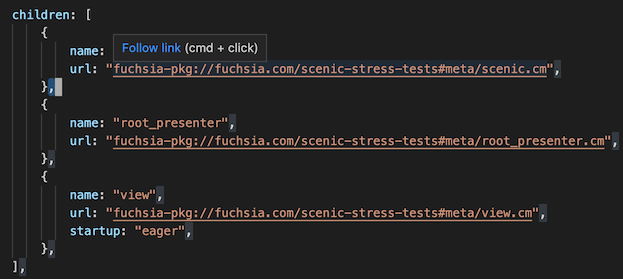
FuchsiAware{: .external} assists with browsing Fuchsia artifacts, such as by linking from component URLs to component manifests.
General workflow extensions
General workflow extensions provide an overall productive workflow when working with Fuchsia.
GitLens
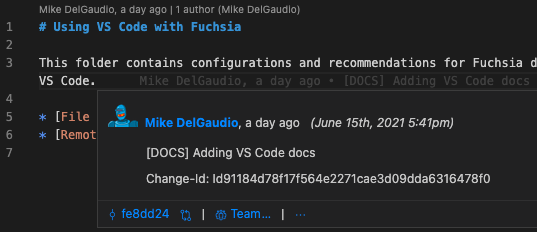
GitLens{: .external} provides highly customizable insights of git history, which allows you to see code evolution.
GN
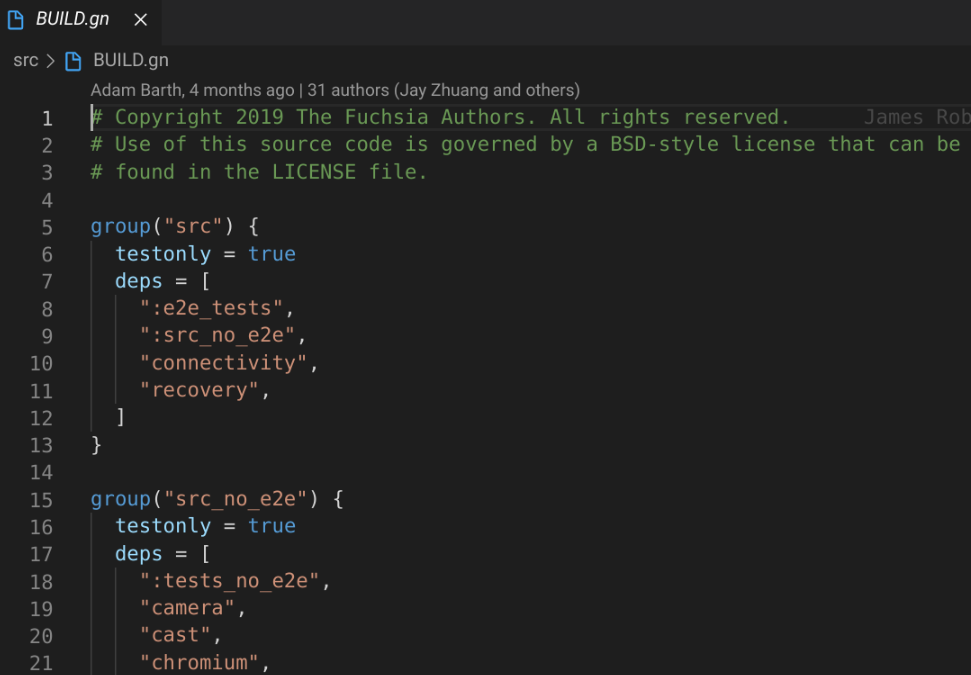
GN{: .external} adds syntax highlighting for GN files.
GNFormat
GNFormat{: .external} provides GN file formatting.
You may need to configure GNFormat with the file path to your GN binary and buildtools. Do the following:
- In VS Code, launch Quick Open by running
CMD/CTRL + P. - Type
settingsin the search field. - Click Preferences: Open Settings (JSON).
- Add the following configuration and restart VS Code:
"gnformat.path.gn": "{{ '<var>' }}FILE_PATH{{ '</var>' }}",
"gnformat.path.buildtools": "{{ '<var>' }}BUILD_TOOLS_PATH{{ '</var>' }}"
JSON5
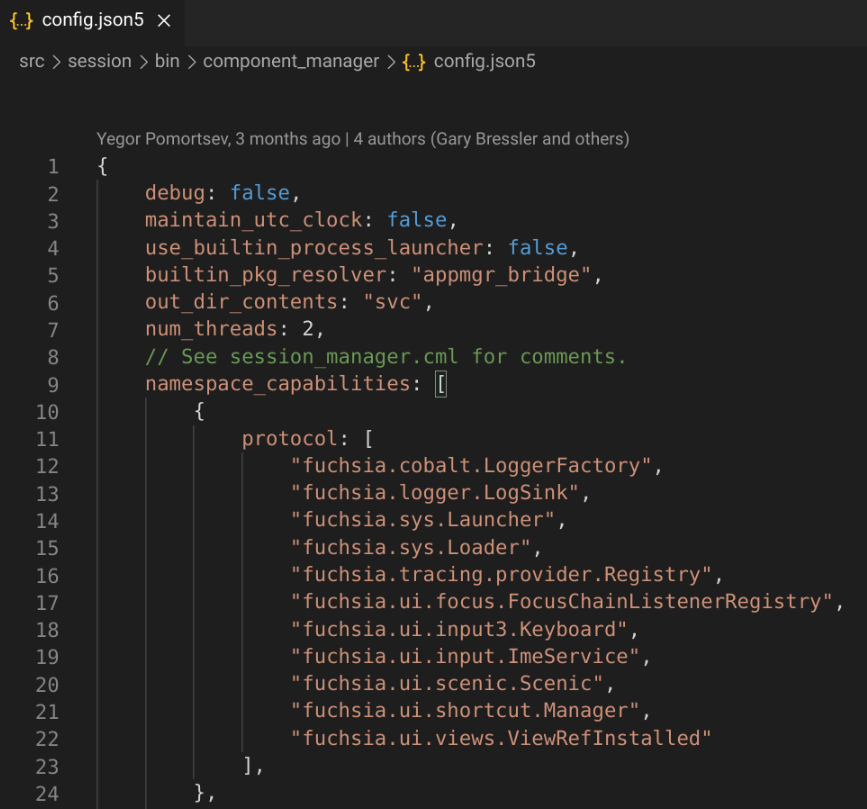
JSON5{: .external} adds syntax highlighting for JSON5 files.
Rust-analyzer {#rust-analyzer}
Rust-analyzer{: .external} is a [Language Server Protocol][lsp-definition]{: .external} (LSP) implementation for the Rust language.
Note: If your Fuchsia source is symlinked from another mountpoint, the
rust-analyzer extension may not locate the files for analysis.
Instead, open the actual file path to the Fuchsia source in VS Code.
To use rust-analyzer with VS Code, Fuchsia recommends:
- Updating to the latest stable VS Code{: .external}.
- Disabling telemetry reporting{: .external} for confidential code.
Configure workflow {#rust-configure-workflow}
After installing rust-analyzer, modify your
VS Code's settings.json file:
- Press
CMD/CTRL + SHIFT + Pto open Command Palette. - Type
settingsin the search field. - Click Preferences: Open Settings (JSON).
- In
settings.json, paste the following snippets:
Note: If you use VS Code's [remote workspaces][vscode-remote-workspaces], use the settings.json
for your remote environment.
  // disable cargo check on save
  "rust-analyzer.checkOnSave.enable": false,
  "rust-analyzer.checkOnSave.allTargets": false,
Additionally, you may want to configure smaller tooltips and hide parameter hints to optimize your workspace:
  // optional: only show summary docs for functions (keeps tooltips small)
  "rust-analyzer.callInfo.full": false,
  // optional: don't activate parameterHints automatically
  "editor.parameterHints.enabled": false,
Enable rustfmt
The rust-analyzer extension relies on the rustup installer to invoke rustfmt,
a tool for formatting Rust code according to style guidelines.
To configure rustup with your Fuchsia source code, run:
Note: HOST_OS is linux-x64 on Linux and mac-x64 on macOS.
rustup toolchain link fuchsia {{ '<var>' }}FUCHSIA_DIR{{ '</var>' }}/prebuilt/third_party/rust/{{ '<var>' }}HOST_OS{{ '</var>' }}
After configuring rustup, the rust-analyzer extension supports additional configuration
with Fuchsia's Rust style guide, rustfmt.toml.
Add the following snippet to your settings.json using the same steps
from Configuring workflow:
    // use fuchsia toolchain and fuchsia's rules for rustfmt:
    "rust-analyzer.rustfmt.extraArgs": [
        "+fuchsia",
        "--config-path= {{ '<var>' }}FUCHSIA_DIR{{ '</var>' }}/rustfmt.toml"
    ],
set-up-env /development/languages/fidl/README.md
vscode-extension-guide https://code.visualstudio.com/Download
supported-rust-analyzer-version https://microsoft.github.io/language-server-protocol/ vscode-remote-workspaces