{% setvar example_url "fuchsia.dev" %}
Markdown reference guide
Fuchsia.dev supports the markdown elements documented in this guide.
Blockquotes
Markdown uses the greater-than character (>) to render text as a blockquote
(that is, quoted text).
-
{Markdown}
```none {:.devsite-disable-click-to-copy} This is a Markdown paragraph.
This is a blockquote with two paragraphs. The first line of a blockquote paragraph has to have a greater-than character (
>), but for readability in the source file, add a greater-than character to every subsequent line of the paragraph like this example. Though this isn't a requirement as shown in the second blockquote paragraph below.This is a second blockquote paragraph that only has a greater-than character (
>) for the first line. Donec sit amet nisl. Aliquam semper ipsum sit amet velit. Suspendisse id sem consectetuer libero luctus adipiscing. Lorem ipsum dolor sit amet, consectetuer adipiscing elit. Aliquam hendrerit mi posuere lectus. Vestibulum enim wisi, viverra nec, fringilla in, laoreet vitae, risus. ``` -
{Rendered}
This is a Markdown paragraph.
This is a blockquote with two paragraphs. The first line of a blockquote paragraph has to have a greater-than character (
>); but for readability in the source file, add a greater-than character to every subsequent line of the paragraph like this example. However, this isn't a requirement, as shown in the second blockquote paragraph below.This is a second blockquote paragraph that only has a greater-than character (
>) for the first line. Donec sit amet nisl. Aliquam semper ipsum sit amet velit. Suspendisse id sem consectetuer libero luctus adipiscing. Lorem ipsum dolor sit amet, consectetuer adipiscing elit. Aliquam hendrerit mi posuere lectus. Vestibulum enim wisi, viverra nec, fringilla in, laoreet vitae, risus.
Code blocks {#code-blocks}
Code blocks are used to provide programmatic examples or markup source code. The content within a code block is not parsed like a normal Markdown paragraph but is instead rendered as it's written.
You can use code blocks to specify which programming language{: .external} to render the code in for highlighting.
A blank line is required both before and after the three backticks
(```). The backticks do not render in the final output.
However, blank lines within a code block render in the final output.
Note: To ensure compatibility between various markdown flavors, it is recommended to use fenced code blocks and avoid indents.
-
{Markdown}
Example 1: Uses Java syntax highlighting
Example 2: Prevents syntax highlighting
```none {:.devsite-disable-click-to-copy} Some pseudo-code doesn't need syntax highlighting.
-
{Generated HTML}
<p>Example 1: Uses Java syntax highlighting</p> <pre class="prettyprint lang-java"><code>public class Hello {<br/>public static void main(String arg[]) {<br/>System.out.println("Hello.");<br/>} <br/>}<br/></code></pre> <p>Example 2: Prevents syntax highlighting</p> <pre class="click-to-copy"><code><br/><p>Some pseudo-code doesn't need syntax highlighting.</p><br/> </code></pre> <p>Example 3: Includes a replacement variable</p> <pre class="no-prettyprint"><code><br/><p>Hello, my name is <var>your-name</var>. </p><br/></code></pre> -
{Rendered}
Example 1: Uses Java syntax highlighting
Example 2: Prevents syntax highlighting
```none {:.devsite-disable-click-to-copy} Some pseudo-code doesn't need syntax highlighting.
Using replaceable variables inside a code block
To use <var> tags in a code block, use Jinja expression brackets as follows:
The example above renders the following:
PORTComments {#comments}
Fuchsia.dev supports single-line and multi-line comments in Markdown and HTML. The comments do not display on published pages. These comments are useful to alert contributors if your document contains includecode or MathJax.
Note: If you use HTML commenting syntax (for example, <!-- comment -->), your comments
are visible to readers in the HTML page source.
Single-line comments
{% verbatim %}
{# This is a single line comment #}{% endverbatim %}
Multi-line comments
To use a multi-line comment on fuchsia.dev:
Wrap each line with {# ... #}. This works in both HTML and Markdown:
{% verbatim %}
{# I wonder how drivers are doing? #}
{# I hear they are awesome! #}{% endverbatim %}
Custom attributes {#custom-attributes}
Fuchsia.dev allows you to set custom HTML attributes
(such as class, id, or attribute='value') in Markdown files.
Supported Markdown elements
The following elements support custom attributes:
- Code spans
- Code blocks
- Headings
- Links
- Lists
- Paragraphs
- Tables and multi-line tables
Format
| Syntax | Description |
|---|---|
{ and } |
Start and end of custom attribute. |
: |
Required for Markdown custom attribute in fuchsia.dev. |
. |
Word after period (.) sets the class of the element. |
# |
Word after hash (#) sets the id of the element. |
attribute='value' |
Sets an attribute name and value pair for the element; use |
| : : a space to separate pairs. |
-
{Markdown}
none {:.devsite-disable-click-to-copy} This is a Markdown paragraph. {:.customClass #custom_id attribute='value'} -
{Generated HTML}
Definition lists
To create a definition list in Markdown, list the term on a single line, then
precede every definition with a colon (:) on a new line below the definition.
- {Markdown}
```none {:.devsite-disable-click-to-copy} Apple : A fruit : A tech company
Orange : A citrus fruit
   A definition can also contain other block or inline elements. This is a
   paragraph within the same definition as "A citrus fruit". Elements
   within must be indented four spaces to be recognized as part of the
   preceding definition.
: A color ```
- {Generated HTML}
<dl>
  <dt>Apple</dt>
  <dd>A fruit</dd>
  <dd>A tech company</dd>

  <dt>Orange</dt>
  <dd>
    <p>A citrus fruit</p>
    <p>
      A definition can also contain other block or inline elements. This is
      a paragraph within the same definition as "A citrus fruit". Elements
      within must be indented four spaces to be recognized as part of the
      preceding definition.
    </p>
  </dd>
  <dd>
    <p>A color</p>
  </dd>
</dl>
- {Rendered}
Apple : A fruit : A tech company
Orange : A citrus fruit
   A definition can also contain other block or inline elements. This is a
   paragraph within the same definition as "A citrus fruit". Elements
   within must be indented four spaces to be recognized as part of the
   preceding definition.
: A color
Emphasis and strong {#emphasis-and-strong}
Markdown uses asterisks (*) and underscores (_) for emphasis and strong formatting.
Emphasis
Text in one asterisk (*) or underscore (_) provides an italic style to specific text.
Note: Using asterisks within a word formats the text, but using underscores within a word has no effect, as in the example below.
-
{Markdown}
```none {:.devsite-disable-click-to-copy} single asterisks
single underscores
supercalifragilisticexpialidocious
supercali_fragilistic_expialidocious // won't format ```
-
{Generated HTML}
-
{Rendered}
single asterisks
single underscores
supercalifragilisticexpialidocious
supercali_fragilistic_expialidocious
Strong
Text in double asterisks (**) or underscores (__) provides a bold style to specific text.
-
{Markdown}
```none {:.devsite-disable-click-to-copy} double asterisks
double underscores
supercalifragilisticexpialidocious
supercali__fragilistic__expialidocious ```
-
{Generated HTML}
-
{Rendered}
double asterisks
double underscores
supercalifragilisticexpialidocious
supercali__fragilistic__expialidocious
Escaping
Certain characters are reserved syntax in Markdown. To use a special character,
use a backslash escape (\) to display the following literal characters:
``none {:.devsite-disable-click-to-copy}
\   backslash
backtick
* asterisk
_ underscore
{} curly braces
[] square brackets
() parentheses
hash mark
- plus sign
- minus sign (hyphen)
. dot
! exclamation mark
## Footnotes

Footnotes are a useful tool for including additional or supplementary content
without disrupting the flow of the page. The syntax is similar to
reference links:

```none {:.devsite-disable-click-to-copy}
In the main text, include a label[^1] that starts with a caret.

{% verbatim %}[^1]: The footnote content goes here.{% endverbatim %}
The footnote label can be any arbitrary string as long as it starts with a
caret ^.
Headings
Markdown supports atx-style headers use between one and six hash characters (#) at the start of
the line, which correspond to header levels one through six.
-
{Markdown}
```none {:.devsite-disable-click-to-copy}
This is an H1
This is an H2
This is an H6
```
-
{Rendered}
This is an H1 {:.hide-from-toc}
This is an H2 {:.hide-from-toc}
This is an H6 {:.hide-from-toc}
Header IDs {#header-ids}
Fuchsia.dev supports custom HTML id attribute for every header. If
you want to override the default id, add the
custom attribute
{#user_defined_name} at the end of the Markdown header.
- {Markdown}
none {:.devsite-disable-click-to-copy}
  # Working with contacts {#working-with-contacts}
  ## Contact Entry
  ### Contacts are working
- {Generated HTML}
<h1 id="working-with-contacts">Working with contacts</h1>
<h2 id="contact-entry">Contact Entry</h2>
<h3 id="contacts-are-working">Contacts are working</h3>
Table of contents {#table-of-contents}
For every second- and third-level heading, fuchsia.dev automatically generates a
table of contents (TOC) for the page. To hide headers from the TOC, add the
custom attribute
{:.hide-from-toc} at the end of the header.
-
{Markdown}
```none {:.devsite-disable-click-to-copy}
Hidden in TOC {:.hide-from-toc} // try to find it!
```
-
{Rendered}
Hidden in TOC {:.hide-from-toc}
Horizontal rules {#horizontal-rules}
Markdown supports a horizontal rule tag (<hr>) by placing three or more
hyphens, asterisks, or underscores on a line.
Each of the following will produce a horizontal rule:
```none {:.devsite-disable-click-to-copy}
## Images
Markdown uses an image syntax that is intended to resemble the syntax
for links, allowing for two styles: inline and reference.
Every image has the following properties:
* Starting exclamation mark: `!`.
* Set of square brackets, containing the `alt` attribute text.
* Set of parentheses, containing the URL or path to the image, and an
optional `title` attribute enclosed in double or single quotes.
* Set of optional classes using [custom attribute syntax](markdown.md#custom-attributes) `{: .my-custom-css-class}`
### Inline syntax
The following are valid inline image syntax:
```none {:.devsite-disable-click-to-copy}

{: .my-custom-css-class}
Reference syntax
The following is reference-style image syntax:
```none {:.devsite-disable-click-to-copy} ![Alt text][{{ '' }}ID{{ '' }}]
Where {{ '<var>' }}ID{{ '</var>' }} is the name of a defined image reference.
Image references are defined using syntax identical to link references:
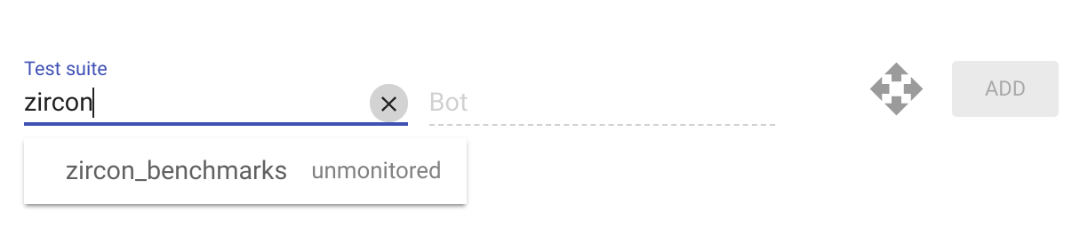
<pre>{% verbatim %}[<var>ID</var>](../../images/benchmarking/test_suite_example.png) "Optional title attribute"{% endverbatim %}</pre>
### Custom syntax
You can specify the width of a Markdown image using the following syntax:
```none {:.devsite-disable-click-to-copy}
{: width="123"}
Include code {#include-code}
The includecode tag includes a region of text from another file, especially a region of source code.
The tag can also generate a downloadable file within the text, instead of including the
text in the document.
You can use this tag to insert a portion of source code into a document, and maintain that source code as a runnable file.
Note: includecode is only visible on published fuchsia.dev pages. To inform your reader about the
use of includecode in your document, add a Markdown comment to the top of your document.
{% verbatim %}
{# To see the fully rendered includecode file on this page,
  see the published page at https://fuchsia.dev/<PATH_TO_YOUR_DOCUMENT>#}{% endverbatim %}
See comments for more information.
The gerrit_repo+path parameter refers to a repository and path hosted on Gerrit or Git.
The repo is in the format instance or repository and path is in the format of path/to/file.
```none {:.devsite-disable-click-to-copy} {% verbatim %}{% includecode gerrit_repo="fuchsia/fuchsia" gerrit_path="examples/fidl/fuchsia.examples/types.test.fidl" %}{% endverbatim %}
### Including a portion of a file
There are three ways to specify a region of the file to include: region tags, regular expressions, and indented blocks.
* {Region tag}
Region tags allow you to add lines to the source file that indicate the first and last lines of the
region along with a tag name.
```none {:.devsite-disable-click-to-copy}
{% verbatim %}{% includecode gerrit_repo="fuchsia/fuchsia" gerrit_path="examples/fidl/fuchsia.examples/types.test.fidl" region_tag="consts" %}{% endverbatim %}
```
Rendered:
<pre class="lang-cpp prettyprint">
{% includecode gerrit_repo="fuchsia/fuchsia" gerrit_path="examples/fidl/fuchsia.examples/types.test.fidl" region_tag="consts" %}
</pre>
* {Regular expressions}
You can also use regular expressions to define the region to extract, using the `regexp` parameter.
For example:
```none {:.devsite-disable-click-to-copy}
{% verbatim %}{% includecode gerrit_repo="fuchsia/fuchsia" gerrit_path="examples/fidl/fuchsia.examples/types.test.fidl" regexp="WRITE = 0b010;" %}{% endverbatim %}
```
Rendered:
<pre class="lang-cpp prettyprint">
{% includecode gerrit_repo="fuchsia/fuchsia" gerrit_path="examples/fidl/fuchsia.examples/types.test.fidl" regexp="WRITE = 0b010;" %}
</pre>
The pattern uses the Python regular expression syntax. For more information,
see the official [Python documentation][python-regex-doc]{: .external}.
* {Indented blocks}
You can include code from a function or class definition without defining region tags.
Use the `indented_block` parameter:
```none {:.devsite-disable-click-to-copy}
{% verbatim %}{% includecode gerrit_repo="fuchsia/fuchsia" gerrit_path="examples/fidl/fuchsia.examples/types.test.fidl" indented_block="type User" %}{% endverbatim %}
```
Rendered:
<pre class="lang-cpp prettyprint">
{% includecode gerrit_repo="fuchsia/fuchsia" gerrit_path="examples/fidl/fuchsia.examples/types.test.fidl" indented_block="type User" %}
</pre>
The pattern uses the Python regular expression syntax. For more information, see the official [Python documentation][python-regex-doc]{: .external}.
### Parameters
The following are optional parameters for `includecode`:
* {Markdown}
<table class="responsive">
<tbody>
<tr>
<th colspan=2>Parameters</th>
</tr>
<tr>
<td><code>highlight</code></td>
<td><b>Optional</b><br>
You can use the <code>highlight</code> parameter to call attention to a specific part of the code.
Use comma separated values to indicate the lines you would like to highlight. The line numbers are
relative to the region you select and not to the entire file.
<br><br><b>Example</b><br>
<code>{% verbatim %}{% includecode gerrit_repo="fuchsia/fuchsia" gerrit_path="examples/fidl/fuchsia.examples/types.test.fidl" region_tag="bits" highlight="2,3,4" %}{% endverbatim %}</code>
</td>
</tr>
<tr>
<td><code>adjust_indentation</code></td>
<td><b>Optional</b><br>
By default, <code>includecode</code> returns the specified section of the source code,
including whitespace. You can adjust the indentation of the code with the
<code>adjust_indentation</code> option.
<br><br><code>adjust_indentation</code> takes two possible values:
<ul>
<li>{{ '<var>' }}number{{ '</var>' }} - An integer. This indicates the number of spaces by which every line will be unindented.
For example, a value of 4 would dedent the line by 4 spaces, while -2 would indent the line by 2 spaces.</li>
<li>'auto' - The string auto. The publishing tool will unindent the selected code by the minimum number of
leading spaces found in a region. In other words, it will remove as much leading whitespace as is common to
all lines in the code snippet.</li>
</ul>
<b>Example</b><br>
<code>{% verbatim %}{% includecode gerrit_repo="fuchsia/fuchsia" gerrit_path="examples/fidl/fuchsia.examples/types.test.fidl" region_tag="bits" adjust_indentation="-2" %}{% endverbatim %}</code>
</td>
</tr>
<tr>
<td><code>html_escape</code></td>
<td><b>Optional</b><br>
By default, <code>includecode</code> HTML-escapes all code.
You can set <code>html_escape</code> to <code>False</code> to un-escape HTML.
<br><br><b>Example</b><br>
<code>{% verbatim %}{% includecode gerrit_repo="fuchsia/fuchsia" gerrit_path="examples/fidl/fuchsia.examples/echo.test.fidl" region_tag="launcher" html_escape="False" %}{% endverbatim %}</code>
</td>
</tr>
<tr>
<td><code>exclude_regexp</code></td>
<td><b>Optional</b><br>
You can remove certain lines according to a regex. This is useful for removing comments or other
irrelevant content. You can not use multiline regex.
<br><br><b>Example</b><br>
<code>{% verbatim %}{% includecode gerrit_repo="fuchsia/fuchsia" gerrit_path="examples/fidl/fuchsia.examples/types.test.fidl" region_tag="bits" exclude_regexp="READ" %}{% endverbatim %}</code>
</td>
</tr>
</tbody>
</table>
* {Rendered}
<table class="responsive">
<tbody>
<tr>
<th colspan=2>Parameters</th>
</tr>
<tr>
<td><code>highlight</code></td>
<td>
Before <code>highlight="2,3,4"</code>:
<pre class="prettyprint lang-cpp">
bits FileMode : uint16 {
READ = 0b001;
WRITE = 0b010;
EXECUTE = 0b100;
};</pre>
After <code>highlight="2,3,4"</code>:
<pre class="prettyprint lang-cpp">
bits FileMode : uint16 {
<strong>READ = 0b001;</strong>
<strong>WRITE = 0b010;</strong>
<strong>EXECUTE = 0b100;</strong>
};</pre>
</td>
</tr>
<tr>
<td><code>adjust_indentation</code></td>
<td>
Before <code>adjust_indentation="-2"</code>:
<pre class="prettyprint lang-cpp">
bits FileMode : uint16 {
READ = 0b001;
WRITE = 0b010;
EXECUTE = 0b100;
};</pre>
After <code>adjust_indentation="-2"</code>:
<pre class="prettyprint lang-cpp">
bits FileMode : uint16 {
READ = 0b001;
WRITE = 0b010;
EXECUTE = 0b100;
};</pre>
</td>
</tr>
<tr>
<td><code>html_escape</code></td>
<td>
Before <code>html_escape="False"</code>:
<pre class="prettyprint lang-cpp">MAX_STRING_LENGTH echo_prefix, request<Echo> request);</pre>
After <code>html_escape="True"</code>:
<pre class="prettyprint lang-cpp">MAX_STRING_LENGTH echo_prefix, request request);</pre>
</td>
</tr>
<tr>
<td><code>exclude_regexp</code></td>
<td>
Before <code>exclude_regexp="READ"</code>:
<pre class="prettyprint lang-cpp">
bits FileMode : uint16 {
READ = 0b001;
WRITE = 0b010;
EXECUTE = 0b100;
};</pre>
After <code>exclude_regexp="READ"</code>:
<pre class="prettyprint lang-cpp">
bits FileMode : uint16 {
WRITE = 0b010;
EXECUTE = 0b100;
};</pre>
</td>
</tr>
</tbody>
</table>
## Inline code
You can indicate code within a Markdown paragraph by wrapping text with backtick
quotes (`` ` ``).
Note: If you need to render multiple lines in a paragraph as code, use
[code blocks](#code-blocks) instead.
* {Markdown}
```none {:.devsite-disable-click-to-copy}
Use the `printf()` function. Code for the `printf()` function is located in the `system\ ` directory.
This sentence has inline ` {code} ` with a lot of spaces but none are rendered.
```
* {Generated HTML}
```html
<p>Use the <code>printf()</code> function. Code for the <code>printf()</code>
function is located in the <code>system\</code> directory.</p>
<p>This sentence has inline <code>{code}</code>with a lot of spaces but none
are rendered.</p>
```
* {Rendered}
Use the `printf()` function. Code for the `printf()` function is located in
the `system\ ` directory.
This sentence has inline ` {code} ` with a lot of spaces but none are rendered.
## Inline HTML
Markdown syntax does not offer the full versatility of HTML, however
Markdown supports _inline_ HTML. You can wrap your text in an HTML
element tag such as:
* {Markdown}
```none {:.devsite-disable-click-to-copy}
This sentence is in Markdown with a <b>bold inline HTML tag</b>.
```
* {Rendered}
This sentence is in Markdown with a <b>bold inline HTML tag</b>.
## Links
Fuchsia.dev supports three style of links: *inline*, *reference*, and *external*.
In all styles, the link text is delimited by `[]` (square brackets).
### Inline links
To create an inline link, use a set of regular parentheses immediately
after the link text's closing square bracket. Inside the parentheses,
put the URL where you want the link to point, along with an optional
title for the link, surrounded in quotes. For example:
* {Markdown}
```none {:.devsite-disable-click-to-copy}
This is [an example](https://{{example_url}}/ "Title") inline link.
[This link](https://{{example_url}}/) has no title attribute.
```
* {Generated HTML}
```html
<p>This is <a href="https://{{example_url}}/" title="Title">
an example</a> inline link.</p>
<p><a href="{{example_url}}">This link</a> has no
title attribute.</p>
```
* {Rendered}
<p>This is <a href="https://{{example_url}}/" title="Title">
an example</a> inline link.</p>
<p><a href="{{example_url}}">This link</a> has no
title attribute.</p>
If you're referring to a local resource such as a file in the source tree, you can
use relative paths. See the [docs README](../../README.md) for examples.
### Reference links
Reference-style links use a second set of square brackets, inside
which you provide a label to identify the link:
```none {:.devsite-disable-click-to-copy}
This is [an example][id] reference-style link.
You can optionally use a space to separate the sets of brackets:
```none {:.devsite-disable-click-to-copy} This is [an example] [id] reference-style link.
Then, at the bottom of the document, you define your link at the bottom of the document,
on a single line:

```none {:.devsite-disable-click-to-copy}
{% verbatim %}[id]: https://{{example_url}}/  "Optional Title Here"{% endverbatim %}
External links
You can alert readers that a link will lead to an external site by adding
{: .external} to the syntax. For example:
```none {:.devsite-disable-click-to-copy} See the official documentation{: .external} for details.
Links to Fuchsia source code or to Fuchsia changes are not external links.

## Lists

Using Markdown syntax, you can easily create a bulleted or a numbered list.
These are commonly known as unordered (that is bulleted) or ordered
(that is numbered) lists since they refer to the generated (`<ul>`) and (`<ol>`)
HTML tags.

### Unordered lists

Unordered lists can use asterisks (`*`), pluses (`+`), or dashes (`-`) as list
markers. The list renders the same, regardless of which marker you use.

*  {Markdown}

   ```none {:.devsite-disable-click-to-copy}
   This is a Markdown paragraph:
                                                // required blank line
   * Red
   * Green
   * Blue

   This is another Markdown paragraph:
                                               // required blank line
   + Red
   + Green
   + Blue

   This is yet another Markdown paragraph:
                                               // required blank line
   - Red
   - Green
   - Blue
   ```

*  {Generated HTML}

   ```html
   <p>This is a Markdown paragraph:</p>
   <ul>
     <li>Red</li>
     <li>Green</li>
     <li>Blue</li>
   </ul>
   <p>This is another Markdown paragraph:</p>
   <ul>
     <li>Red</li>
     <li>Green</li>
     <li>Blue</li>
   </ul>
   <p>This is yet another Markdown paragraph:</p>
   <ul>
     <li>Red</li>
     <li>Green</li>
     <li>Blue</li>
   </ul>
  ```

*  {Rendered}

   This is a Markdown paragraph:

   * Red
   * Green
   * Blue

   This is another Markdown paragraph:

   + Red
   + Green
   + Blue

   This is yet another Markdown paragraph:

   - Red
   - Green
   - Blue

### Multi-level unordered lists

You can use asterisks (`*`), pluses (`+`), or dashes (`-`) for list markers in
multi-level unordered lists. The second-level markers must precede by at
least four spaces and remain consistent at every level. See the example below:

*  {Markdown}

   ```none {:.devsite-disable-click-to-copy}
   This is a Markdown paragraph:
                                 // required blank line before parent list
    * Bird
        * Celtics
        * Retired
          * Larry                // extra space; not consistent w/ "Celtics"
    * Magic
        * Lakers
   ```

*  {Generated HTML}

   ```html
   <p>This is a Markdown paragraph:</p>
   <ul>
     <li>Bird
       <ul>
         <li>Celtics</li>
         <li>Retired</li>
         <ul>
           <li>Larry</li>
         </ul>
       </ul>
     </li>
     <li>Magic
       <ul>
         <li>Lakers</li>
       </ul>
     </li>
   </ul>
   ```

*  {Rendered}

   This is a Markdown paragraph:

   * Bird
       * Celtics
       * Retired
         * Larry
   * Magic
       * Lakers

### Ordered lists

Ordered lists use a number and a period before the list item. You may define your own ordinal
numbers in your ordered lists or use `1.` for automatic numbering. See the example below:

*  {Markdown}

    ```none {:.devsite-disable-click-to-copy}
    This is a Markdown paragraph:
                                       // required blank line
    1. Bird                            // recommended numbering
    1. McHale
    1. Parish

    This is another Markdown paragraph:
                                       // required blank line
    1. Bird                            // sequential numbering is allowed,
    2. McHale                          // but not recommended
    3. Parish

    This is yet another Markdown paragraph:
                                       // required blank line
    3. Bird                            // non-sequential numbering is allowed,
    1. McHale                          // but not recommended
    8. Parish
    ```

*  {Generated HTML}

   ```html
   <p>This is a Markdown paragraph:</p>
   <ol>
     <li>Bird</li>
     <li>McHale</li>
     <li>Parish</li>
   </ol>
   <p>This is another Markdown paragraph:</p>
   <ol>
     <li>Bird</li>
     <li>McHale</li>
     <li>Parish</li>
   </ol>
   <p>This is yet another Markdown paragraph:</p>
   <ol>
     <li>Bird</li>
     <li>McHale</li>
     <li>Parish</li>
   </ol>
   ```

*  {Rendered}

   This is a Markdown paragraph:

   1. Bird
   1. McHale
   1. Parish

   This is another Markdown paragraph:

   1. Bird
   2. McHale
   3. Parish

   This is yet another Markdown paragraph:

   3. Bird
   1. McHale
   8. Parish


### Multi-level ordered lists

You can create multi-level ordered lists; the second-level markers must precede by at least four spaces.

*  {Markdown}

   ```none {:.devsite-disable-click-to-copy}
    1. Bird
        1. Lakers
    1. McHale
        1. Celtics
   ```

*  {Generated HTML}

   ```html
   <ol>
     <li>Bird
       <ol>
         <li>Lakers</li>
       </ol>
     </li>
     <li>McHale
       <ol>
         <li>Celtics</li>
       </ol>
     </li>
   </ol>
   ```

*  {Rendered}

   1. Bird
       1. Lakers
   1. McHale
       1. Celtics

## MathJax {#mathjax}

The `<devsite-mathjax>` custom element allows you to display mathematical notation in
fuchsia.dev content using [MathJax 2.7][mathjax]{:.external}. MathJax utilizes LaTeX syntax to create
mathematical notion. See the [LaTeX syntax guide][latex-guide]{:.external} to learn more.

Note: MathJax is only visible on published fuchsia.dev pages. To inform your reader about the
use of MathJax in your document, add a Markdown comment to the top of your document. See
[comments](markdown.md#comments) for examples.

### Usage

To utilize MathJax in your document, you must include the custom element one time in your document:

Note: When writing your published page path, replace `/docs/` with `/fuchsia-src/`.

```html
  {% verbatim %}{# To see the fully rendered MathJax equations on this page,
  see the published page at https://fuchsia.dev/<PATH_TO_YOUR_DOCUMENT>#}{% endverbatim %}
  <devsite-mathjax config="TeX-AMS-MML_SVG"></devsite-mathjax>
After including the custom element, you can write mathematical notion inside of a $$ block or $ inline.
Standalone block
- {Markdown}
<!-- <devsite-mathjax config="TeX-AMS-MML_SVG"></devsite-mathjax> -->

<div>
  $$
  R_{\mu\nu}-\frac{1}{2}Rg_{\mu\nu}+\Lambda{g_{\mu\nu}} = \frac{8\pi{G}}{c^4}{T_{\mu\nu}}
  $$
</div>
- {Rendered}
Inline
- {Markdown}
<!--Included only one time previously-->
<devsite-mathjax config="TeX-AMS-MML_SVG"></devsite-mathjax>

The area of a circle can be computed using the equation $ A = \pi{r^2} $,
where $ r $ is the radius of the circle, and $ \pi $ is the mathematical
constant that is approximately equal to 3.14159.
- {Rendered}
The area of a circle can be computed using the equation $ A = \pi{r^2} $, where $ r $ is the radius of the circle, and $ \pi $ is the mathematical constant that is approximately equal to 3.14159.
Paragraphs
A paragraph is simply one or more consecutive lines of text, separated by one or more blank lines. (A blank line is any line that looks like a blank line -- a line containing nothing but spaces or tabs is considered blank.) You do not need to indent normal paragraphs with spaces or tabs.
Tables
Markdown makes it easy to format tables with pipes (|) and hyphens (-).
Deliminate text with pipes to create columns; a header row is defined when
the following row has at least three hyphens for each column header.
-
{Markdown}
none {:.devsite-disable-click-to-copy} Lesson | Description ------------------------ | --------------------------------------- What is Fuchsia? | An open source effort to create a production-grade operating system What is FIDL? | Fuchsia Interface Definition Language Getting Started | Download the Fuchsia source code -
{Generated HTML}
<table> <thead> <tr> <th>Lesson</th> <th>Description</th> </tr> </thead> <tbody> <tr> <td>What is Fuchsia?</td> <td>An open source effort to create a production-grade operating system</td> </tr> <tr> <td>What is FIDL?</td> <td>Fuchsia Interface Definition Language</td> </tr> <tr> <td>Getting Started</td> <td>Download the Fuchsia source code</td> </tr> </tbody> </table> -
{Rendered}
Lesson Description What is Fuchsia? An open source effort to create a production-grade operating system What is FIDL? Fuchsia Interface Definition Language Getting Started Download the Fuchsia source code
Formatting text in a table
You can use Markdown syntax to format text within a table (that is, *emphasis*,
**strong**, `code`). To align text within a column, add a colon
: in the dash --- row to indicate direction (that is, left, center, right) as
in the example below:
-
{Markdown}
none {:.devsite-disable-click-to-copy} Left-aligned | Center-aligned | Right-aligned :--- | :---: | ---: info | info | info more info | more info | more info even *more* info | some `code` | **not** code -
{Rendered}
Left-aligned Center-aligned Right-aligned info info info more info more info more info even more info some codenot code